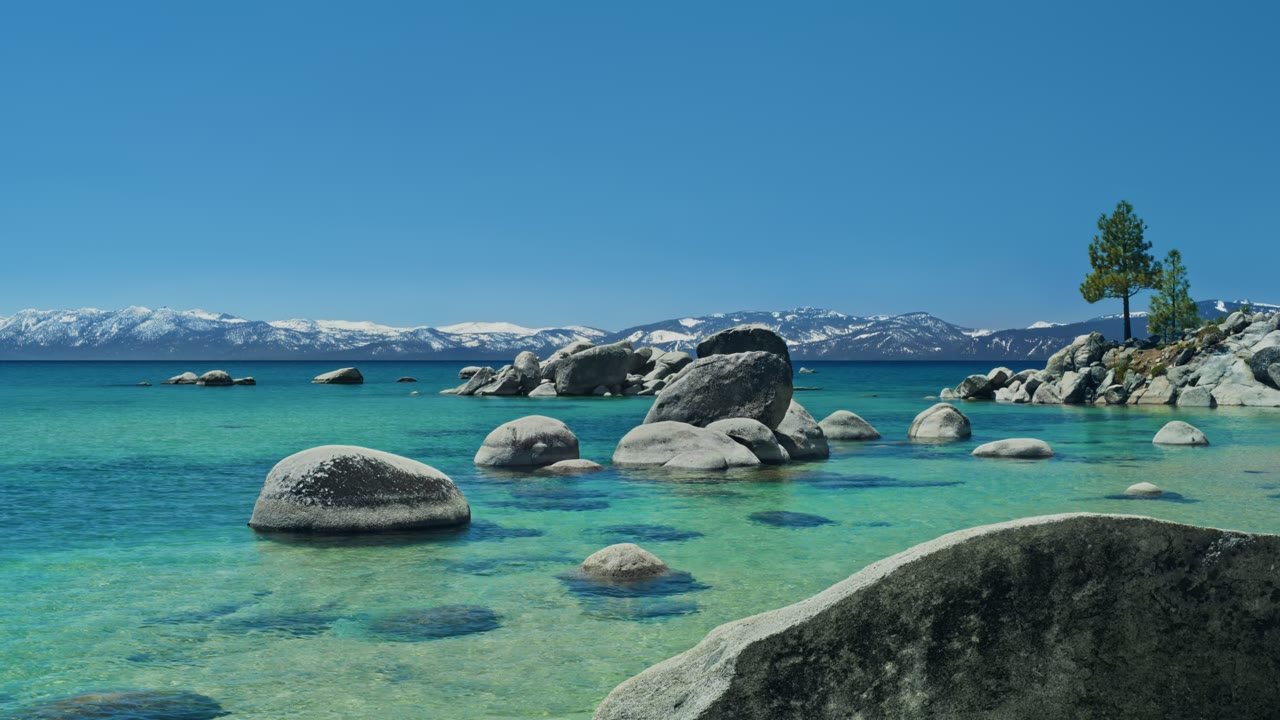
The short answer
Since macOS 14 the Aerial films can be set as wallpaper, not only as the screen saver. On the desktop the system plays one around login and unlock, then holds a frame; only the screen saver runs it continuously. Keeping the film moving all day, on every display, is what Skywall does.
- 1
Check which macOS you are on
Open the menu in the top-left corner and choose About This Mac. Aerial films as wallpaper arrived in macOS 14. On Ventura and earlier the same films exist, but only as a screen saver.
- 2
Open System Settings → Wallpaper
The pane now sits next to Screen Saver, because since macOS 14 the two share one library. Scroll past the stills and the colours to the rows of Aerial films.
- 3
Pick one and watch it download
The films are not shipped with the installer. Clicking one fetches a 4K master from the system’s content servers, so the desktop may show a still for a minute. Once it has arrived, the system plays it around login and unlock and holds a frame in between; only the screen saver runs it continuously.
- 4
Reach the ones the pane leaves out
Some films never appear in the picker. They sit in the same manifest the pane reads, and the system will play any of them.
- 5
Keep it moving
Skywall plays your choice on the desktop all day, on every display.
The films the pane leaves out
Some films never appear in the picker — landscapes, cities, the ocean floor, the Earth from orbit — and every one is a 4K master the system will play.
Browse the full set to see which they are.
Your own videos
That is a different job. The Wallpaper pane takes pictures, not video files, so playing an arbitrary clip on the desktop needs software that paints its own window over it. Skywall plays only the films the system already ships.
What it costs the machine
Less than people expect. The frames go through the same hardware decoder macOS uses for the screen saver, so the CPU is barely involved. What matters more is knowing when to stop: Skywall halts when a full-screen app covers the desktop, when the display sleeps, when the Mac locks, when it runs hot and in Low Power Mode.
Getting all of them
That is what Skywall is for. It reads the same manifest macOS reads, lists every film, fetches a missing one from the system’s official content servers, and plays your choice on every display, all day. No second copy of anything on disk.
Questions
Can you get live wallpapers on a Mac?
Yes. macOS 14 and later can put the built-in Aerial films on the desktop, though the system plays one only around login and unlock and then holds a frame. Skywall keeps it moving all day and lists the films the picker leaves out.
How do I get a live wallpaper on a MacBook?
The same way as on any Mac: System Settings → Wallpaper, then pick one of the Aerial films. It works identically on a MacBook Air and a MacBook Pro. In Skywall, playback pauses in Low Power Mode, or runs at half rate if you switch that off in Settings.
Can you get animated wallpapers on a Mac without extra software?
For the built-in films, yes, though on their own they move only around login and unlock. Your own video files need a third-party player; System Settings accepts pictures only.
Where are the other Aerial films?
In the same manifest the picker reads, one download away from the system’s official content servers. Skywall lists all of them and plays any one.
Do live wallpapers slow a Mac down?
They should not: decoding is hardware, and a well-behaved player stops when a full-screen app covers the desktop, on lock, on sleep and on heat.
Next: the three kinds of dynamic wallpaper, and how to change one, step by step.